Best PC Workstations 2019 For Rendering, VR, & Artificial Intelligence
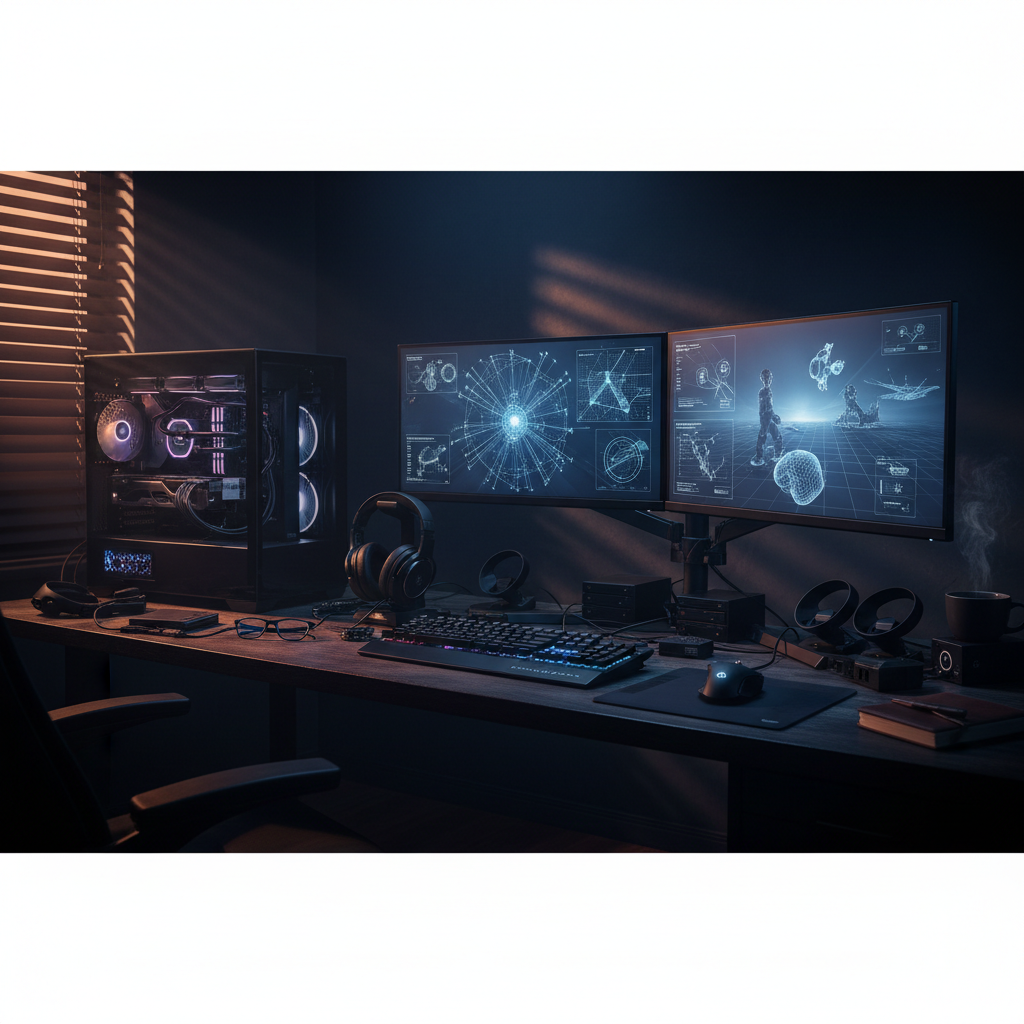
A workstation can be excellent at rendering and still be the wrong machine for virtual reality or artificial intelligence. A CPU renderer may reward dozens of cores, a VR application needs consistent frame delivery, and a deep-learning experiment may be limited by GPU memory before the processor becomes busy.
The best workstation in 2019 is therefore not simply the largest tower with the most expensive specification. It is the system that matches your software, supports your working datasets, and stays reliable through long production runs.
HP, Dell, Lenovo, Fujitsu, and Apple all have options worth considering, but they serve different buyers. Here is how their flagship systems compare, and how to configure one without paying for hardware your applications cannot use.
This guide reflects the workstation landscape in 2019; tools, interfaces, and compatibility requirements may have changed since then.
What Makes a Workstation Best for Your Workload?
Before comparing manufacturers, separate three workloads that are often bundled together in workstation marketing.
Rendering: Identify the Engine First
CPU rendering engines can benefit substantially from additional cores, provided the job scales across them. Large architectural scenes, animation frames, and offline visualization can justify a high-core-count processor or dual-socket system.
GPU rendering follows different rules. Engines such as OctaneRender and many 2019 GPU-rendering configurations depend on NVIDIA CUDA. A powerful AMD graphics card is not a substitute when the renderer requires CUDA.
Memory also matters twice: system RAM holds application data, while GPU VRAM determines how comfortably a GPU renderer can handle a scene. Multiple graphics cards do not automatically combine their memory into one universally available pool. Out-of-core rendering and memory-sharing capabilities depend on the engine and hardware.
VR: Consistency Beats Maximum Core Count
VR requires sustained, predictable frame times. A machine that completes an offline render quickly can still struggle with an interactive scene if its GPU is overloaded or its main application thread is slow.
Prioritize a capable GPU, strong per-core CPU performance, and the exact display and USB connections required by your headset. A dual-Xeon configuration is rarely the first upgrade to buy solely for VR development.
Also distinguish VR development from VR deployment. A developer may need memory for an editor, asset tools, and a running application simultaneously. A demonstration machine has a narrower job.
AI: Start with Framework and GPU Memory
For local deep learning in 2019, NVIDIA GPUs are usually the most straightforward choice because of CUDA and cuDNN support across common frameworks.
Choose GPU memory around the model, input resolution, and batch size you expect to use. NVIDIA's Quadro RTX 6000 offers 24GB of VRAM, while the Quadro RTX 8000 offers 48GB. Those capacities can matter more than buying another CPU socket.
Not every AI workload needs such hardware. Classical machine learning, data preparation, and smaller experiments may be well served by a more modest GPU or CPU-focused system.
The Best Workstation Candidates of 2019
These are workload-based recommendations, not a benchmark ranking. Each product family includes multiple configurations, and supported components can vary by region, firmware, and purchase date.
HP Z8 G4: Best for Large, Expandable Production Workloads
The HP Z8 G4 is a strong candidate when your requirements genuinely extend beyond a conventional desktop. Its dual-socket Xeon platform, extensive memory capacity, and expansion options suit CPU rendering, simulation, and demanding visualization pipelines.
With supported processors, the platform can reach 56 CPU cores across two sockets. That is a system total, not a single-processor specification. Maximum memory capacity likewise depends on the processor generation and installed memory configuration; buyers should verify the relevant HP configuration documentation rather than assume every Z8 supports the same ceiling.
For GPU rendering or AI, supported Quadro RTX configurations can make the Z8 a capable development machine. Its value is the combination of compute, memory, expansion, and enterprise servicing, not a guarantee that every application runs faster.
Best fit: Teams with large scenes, heavy multitasking, substantial RAM requirements, or planned expansion.
Watch out for: Buying two processors for applications dominated by lightly threaded operations. Modeling and interactive editing may benefit more from higher clock speeds.
Dell Precision 7920 Tower: Best for Flexible Enterprise Deployment
The Precision 7920 Tower occupies similar territory: a dual-socket platform designed for demanding professional workloads and managed environments.
Supported configurations offer up to 28 cores per processor, giving as many as 56 cores across two sockets. Its memory and storage options are extensive, but headline capacities depend on the specific processors, DIMMs, drive types, and controllers selected.
Dell's appeal includes service options, configuration flexibility, and application certification. For a studio or engineering department, these can be more useful than a small difference in peak benchmark performance.
ISV certification means a particular hardware, driver, and software combination has been tested or validated for an application. It does not automatically certify every VR headset or guarantee smooth performance in an unoptimized scene.
Best fit: Organizations standardizing professional desktops and prioritizing support, application compatibility, and expansion.
Watch out for: Treating maximum CPU, GPU, and storage specifications as simultaneously available. Power, cooling, slot placement, and ordering restrictions can constrain the final build.
Lenovo ThinkStation P920: Best for Multi-GPU Planning
Lenovo's ThinkStation P920 is another serious dual-Xeon option, especially for buyers planning a workstation around multiple professional GPUs.
Its chassis and expansion layout make it worth considering for GPU rendering, visualization, and local AI development. However, supported card count depends on the cards' physical size and power requirements, along with the rest of the configuration.
The Quadro P6000 remains relevant for some existing pipelines, with 24GB of graphics memory. For a new purchase in 2019, compare it with available Quadro RTX options rather than assuming an older flagship is the best investment. RTX hardware introduces capabilities that only help when your application supports them.
Best fit: Studios seeking a serviceable tower with room for a carefully planned GPU-heavy configuration.
Watch out for: Assuming multiple GPUs provide linear speedups. Render-engine support, training strategy, data transfer, and cooling all influence the benefit.
Fujitsu Celsius R940: Best Considered as a Legacy or Discounted Option
The Celsius R940 needs a different framing. It is an older dual-socket workstation platform, not a newly introduced 2019 flagship. It can still be relevant when available through existing enterprise suppliers or at an attractive refurbished price.
Its Xeon E5-generation platform supports substantial ECC memory and professional graphics options. That can make it useful for established CPU-rendering workflows or engineering applications with known compatibility requirements.
However, a Quadro P4000 configuration, with 8GB of VRAM, is not equivalent to a high-end Quadro RTX system for large AI models or demanding GPU rendering. Nor does professional branding alone establish VR suitability.
Best fit: Buyers extending an existing fleet or obtaining a well-supported machine at a meaningful discount.
Watch out for: Aging processors, remaining warranty coverage, GPU upgrade compatibility, and power-supply limitations. Compare the complete price against newer single-socket alternatives.
Apple Mac Pro 2019: Best for macOS-Centered Creative Production
Although it is not a conventional Windows PC, the redesigned Mac Pro belongs in a professional workstation comparison. Available from December 2019, it offers a single Xeon W processor with up to 28 cores, extensive PCIe expansion, and up to 1.5TB of memory in eligible configurations.
Its Radeon Pro Vega II and Vega II Duo options target demanding creative workloads. The Duo contains two GPUs; its advertised aggregate graphics memory should not be treated as one automatically shared pool for every application.
The Mac Pro makes sense when macOS applications and supported graphics technologies are central to your production pipeline. It is much harder to recommend as a general-purpose CUDA development workstation because its supported internal graphics options are AMD-based.
VR compatibility also requires more scrutiny than on a typical Windows workstation. Check your headset, engine, runtime, and intended deployment platform before buying.
Best fit: High-end creative teams whose applications and production processes are built around macOS.
Watch out for: Paying workstation prices before confirming renderer compatibility. Apple's optional Afterburner accelerator targets supported video workflows, not general AI training or 3D rendering.
How to Choose and Configure Your Workstation
1. Inventory Your Actual Software
Write down the application, version, renderer, plugins, and operating system you use. Record whether each important operation relies on CPU cores, GPU acceleration, or single-thread performance.
For VR, include the headset and runtime. For AI, include framework versions and their CUDA requirements. This inventory prevents the most expensive mistake: purchasing excellent hardware that your software cannot fully use.
2. Test a Representative Project
Ask a vendor or reseller to run a real scene or dataset when possible. Measure more than final render time: include project loading, viewport responsiveness, memory consumption, and sustained operation.
A short synthetic benchmark can identify broad differences, but it cannot establish whether your largest project fits into VRAM or whether a machine remains comfortable to work beside during an overnight run.
3. Allocate the Budget Around the Bottleneck
For CPU rendering, prioritize cores and sufficient RAM. For GPU rendering and deep learning, prioritize compatible GPUs and adequate VRAM. For VR, balance GPU capability with per-core CPU performance.
Do not exclude a high-clocked single-socket workstation or custom desktop. In late 2019, AMD's third-generation Ryzen Threadripper processors make that comparison particularly worthwhile for CPU-heavy work. Enterprise towers still offer advantages in validated configurations, service, and management.
4. Plan Memory, Storage, and Expansion Together
Use enough RAM to avoid routine paging, and follow the vendor's memory-population guidance. On dual-socket systems, memory placement affects bandwidth and access patterns.
An NVMe SSD is a sensible choice for the operating system, applications, and active projects. Separate project storage can simplify capacity planning, but it does not replace backups.
Before adding GPUs, check slot spacing, electrical connectivity, power connectors, cooling clearance, and supported configurations. An empty PCIe slot is not proof that another full-power card will work.
5. Evaluate Support and Total Ownership Cost
Compare warranty terms, repair response, replacement-part availability, and driver validation. Include monitor connections, networking, backup storage, and software licensing in the budget.
For occasional large AI jobs, compare a smaller local workstation plus rented GPU compute against permanently owning a multi-GPU tower. Consider data-transfer time, confidentiality, and ongoing rental costs, not just the hourly compute price.
Short Takeaway
For 2019, the HP Z8 G4, Dell Precision 7920 Tower, and Lenovo ThinkStation P920 are strong expandable enterprise choices. The Fujitsu Celsius R940 is better evaluated as an older value purchase, while the Mac Pro serves macOS-centered creative production.
The best workstation is the one that removes your measured bottleneck. Confirm software compatibility, test a realistic project, and buy useful capacity rather than impressive specifications.
Conversation (0)
No comments yet. Start the conversation.
Join the conversation
Create a free member account to comment.