Import & Duplication Of Page Templates For WordPress Elementor
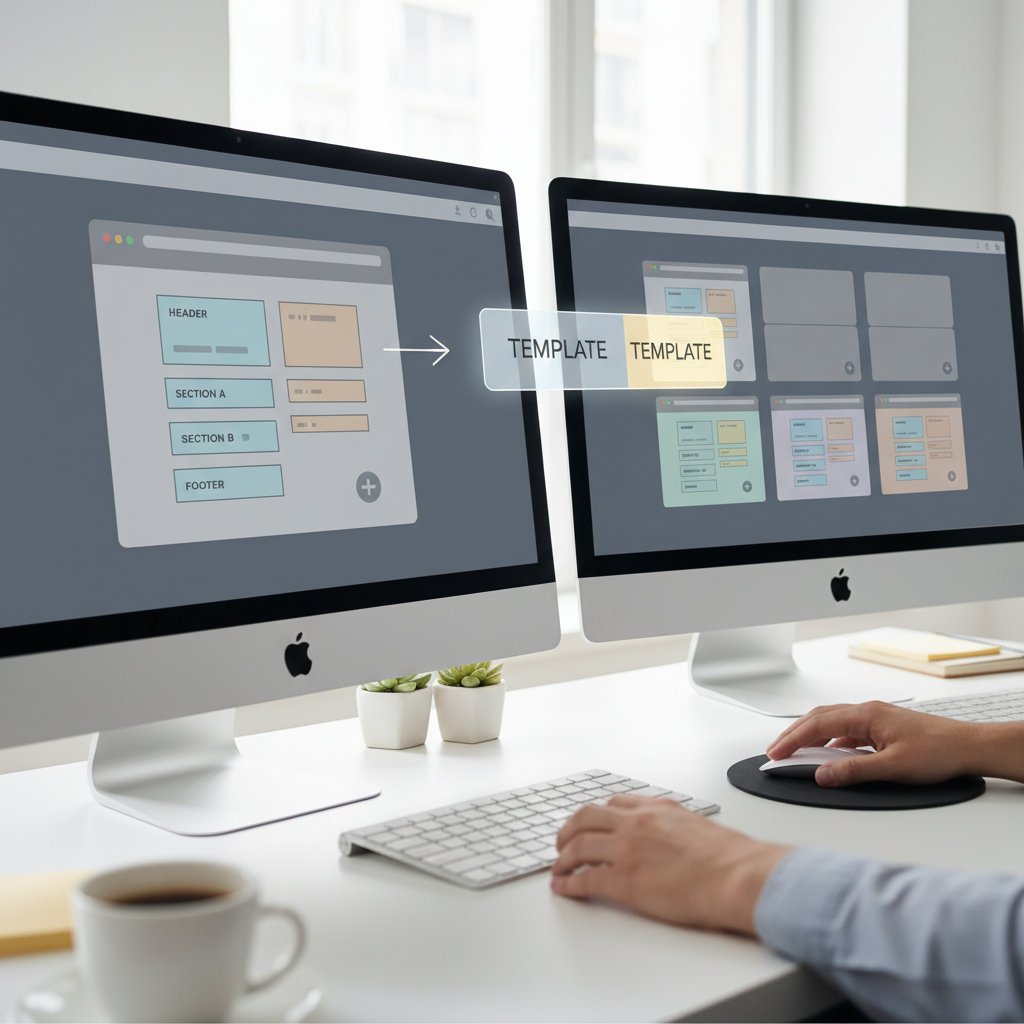
A well-designed page is worth reusing. Once you have a service page, landing page, or contact layout that works, rebuilding it widget by widget is usually wasted effort. Elementor lets you save that design, import it into another WordPress installation, and use it as the starting point for additional pages.
The important part is knowing what each operation actually does. Importing a template adds a reusable design to your library; inserting it places that design on a page. Duplicating a WordPress page is a separate task, and a Duplicate link is not something you should assume Elementor provides by default.
This guide describes Elementor workflows as of 2019; tools, menu labels, and interfaces may have changed since then.
Below, we’ll walk through importing templates, exporting your own designs, and creating independent copies without accidentally changing the original.
Understand What You’re Reusing
An Elementor page template is a saved layout made from sections, columns, and widgets. It can contain headings, images, buttons, spacing, backgrounds, and other design settings. You can insert that layout into another page and customize it instead of starting with an empty canvas.
There are three related concepts worth separating:
- An Elementor saved template: Reusable content stored in Elementor’s template library, commonly exported as a JSON file.
- A WordPress page: A content entry with its own title, URL, publication status, featured image, and other metadata.
- A theme’s page template: A layout option supplied by your WordPress theme, such as a full-width page or a page with a sidebar.
These are not interchangeable. Importing an Elementor layout does not necessarily recreate the original page’s URL, SEO fields, theme settings, or plugin-specific metadata.
Also distinguish ordinary page templates from Elementor Pro’s Theme Builder templates. A header, footer, or single-post design may require display conditions and Pro features; it is not simply a complete landing page ready to publish.
Before You Import or Duplicate Anything
A little preparation prevents most layout surprises.
Check the required tools
You need a working WordPress installation, Elementor installed and activated, and an account with permission to edit the relevant pages and manage templates.
Many layouts work with Elementor’s free version. Others use Elementor Pro widgets or third-party add-ons. A template file does not include licenses or install those dependencies for you. Ask the template provider which plugins and theme assumptions the design requires.
Protect your existing work
For a live website, take a backup before installing unfamiliar add-ons or replacing important layouts. Use a draft page to test an imported design. If you are making broader site changes, a staging installation is safer.
Download templates only from sources you trust. Avoid installing a bundle of unknown plugins simply because a template claims to need them.
Inspect the download
An individual exported Elementor template is typically a .json file. If you received a ZIP archive containing documentation, images, and several templates, extract it and identify the actual template files.
Do not assume every file advertised as a “WordPress template” is compatible with Elementor. A theme ZIP, a page-builder export from another product, and an Elementor JSON file serve different purposes.
How to Import an Elementor Page Template
The process has two stages: first add the template to your library, then insert it into a page.
1. Open your saved templates
From the WordPress dashboard, open Elementor’s saved-template area. Depending on the installed release, this may appear under Templates → Saved Templates or an Elementor library-related menu.
Look for Import Templates near the top of the listing. Some versions also offer an import control inside the template-library window in the editor.
2. Upload the template file
Choose Import Templates, select your Elementor JSON file, and submit the import form. Once the operation completes, the template should appear in your saved-template list.
This step imports the design into your website’s library. It does not publish a new WordPress page or automatically replace an existing one.
If WordPress rejects the file, confirm that it is a genuine Elementor export before investigating upload limits or compatibility problems. Renaming another file with a .json extension will not convert it.
3. Create a destination page
Go to Pages → Add New, give the page a descriptive title, and choose Edit with Elementor.
For your first test, use a blank draft rather than an established page. This makes it easier to see what the template adds and avoids mixing imported sections with existing content.
Check the destination’s page layout setting as well. Elementor Canvas removes the theme’s surrounding header and footer, while a full-width layout generally retains the site’s surrounding structure. Choose according to the intended design, not simply because one looks wider.
4. Insert the imported design
In the Elementor editor, click the folder icon to open the template library. Select My Templates, locate the imported design, and click Insert.
If Elementor asks whether to import document settings, consider whether you want the source design’s supported page-level settings applied to this page. On an existing design, accepting them can change more than the newly inserted sections.
Wait for the layout to load before making further changes. Inspect the entire page, not only the first visible section.
5. Customize before publishing
Replace placeholder copy, images, and button destinations. Check any forms, maps, embedded media, and social links.
A template’s visual appearance is only a starting point. Its contact form may need your recipient address, and its buttons may still point to the source website. Preview the result, save your changes, and publish only after those details are correct.
How to Save and Export Your Own Template
Saving a successful page as a template gives you a repeatable starting point for future work.
1. Save the page layout to the library
Open the source page in Elementor. Use the small arrow beside the Publish or Update button and select Save as Template.
Give the template a name that explains its purpose, such as Service Page, Base Layout. A useful naming convention makes similar designs easier to distinguish later.
Saving a template is separate from publishing or updating the original page, so save any source-page changes you also want to retain there.
2. Export it when moving between websites
Find the saved design in the dashboard’s template list or the editor’s My Templates library. Use its Export option to download a JSON file.
On the destination site, import that file using the workflow above.
Treat the export as a layout transfer, not a complete site migration. It does not package your theme, plugins, global site configuration, and every external dependency into one self-contained file. Images may need checking or manual replacement, especially if the source site is unavailable or its files are private.
How to Duplicate a Page Using Elementor Templates
For most Elementor users, the simplest way to reproduce a page design is to save it as a template and insert it into a new page.
1. Save the source design
Open the page you want to reuse and choose Save as Template. Use a recognizable name so you can find it in My Templates.
2. Create a fresh WordPress page
Add a new page with its own title and open it in Elementor. Match the original page’s layout setting if you want the same surrounding structure.
3. Insert the saved template
Open the folder icon, select My Templates, and insert your saved design. You now have another page containing that layout.
Ordinary inserted sections and widgets become independently editable copies: changing their text on the new page does not rewrite the original page or the saved template.
There are exceptions. Elementor Pro Global Widgets and dynamic content can remain tied to shared elements or data. If the design uses a Global Widget that must differ on this page, unlink it before editing.
4. Make the copy genuinely new
Change the title, permalink, headings, body copy, images, and calls to action. Configure SEO fields and any page-specific metadata separately.
This approach duplicates the Elementor design, not necessarily every property of the WordPress page. That distinction matters when pages depend on custom fields, featured images, or settings from other plugins.
When You Need a Full WordPress Page Duplicate
If you want to copy more than the visible layout, a dedicated page-duplication plugin may be more appropriate.
WordPress core and Elementor do not universally add a Duplicate action beside every page. If that action appears, it may come from another plugin or your site’s customization.
- Choose a maintained duplication plugin compatible with your WordPress version.
- Review its settings for copying content, custom fields, and other metadata.
- In Pages → All Pages, use its clone or new-draft action on the source page.
- Open the duplicate in Elementor and verify that the design survived.
- Check the copied metadata, assign a new URL, and keep the page in draft until reviewed.
Plugin behavior varies. Do not assume that SEO settings, publication dates, author assignments, or custom fields were copied, or deliberately omitted, without checking.
Common Problems and Practical Fixes
The imported design looks different
Compare the active theme, page layout, content width, fonts, and required widgets with the source site. Theme styles and Elementor’s default styling choices can affect the result.
Avoid compensating immediately with dozens of spacing adjustments. First confirm that the destination is not using a sidebar or a different content-width setting.
Widgets or images are missing
Check for missing Pro features or third-party add-ons. For images, inspect whether the files are present in the destination Media Library or still reference another domain. Upload replacement assets when necessary and verify that you have permission to use them.
Styling looks right in the editor but wrong live
Clear relevant WordPress, server, and browser caches. Elementor’s tools area also includes a CSS-regeneration option in applicable releases; regenerating its styles can help after a transfer. Test while logged out before assuming the problem is resolved.
The duplicate contains old destinations
Review every button, navigation anchor, form recipient, and download link. Also check section IDs: inserting the same layout twice on one page can create duplicate IDs and unreliable anchor navigation.
The desktop layout works but mobile does not
Use Elementor’s responsive previews to inspect column stacking, heading sizes, padding, and hidden elements. Then test on an actual phone when possible. Replacing a short heading with a longer one can break an otherwise reusable design.
Takeaway
Use import to bring a design into Elementor’s library, insert to place it on a page, and save as template to reuse your own work. For a broader copy of a WordPress page, use a suitable duplication tool and inspect what it carries over. In every case, treat the result as a draft: verify dependencies, replace inherited content, and test the published appearance before sending visitors to it.
Conversation (0)
No comments yet. Start the conversation.
Join the conversation
Create a free member account to comment.