Part 4: Platform Integrations With Native DialogFlow, Facebook & Firebase
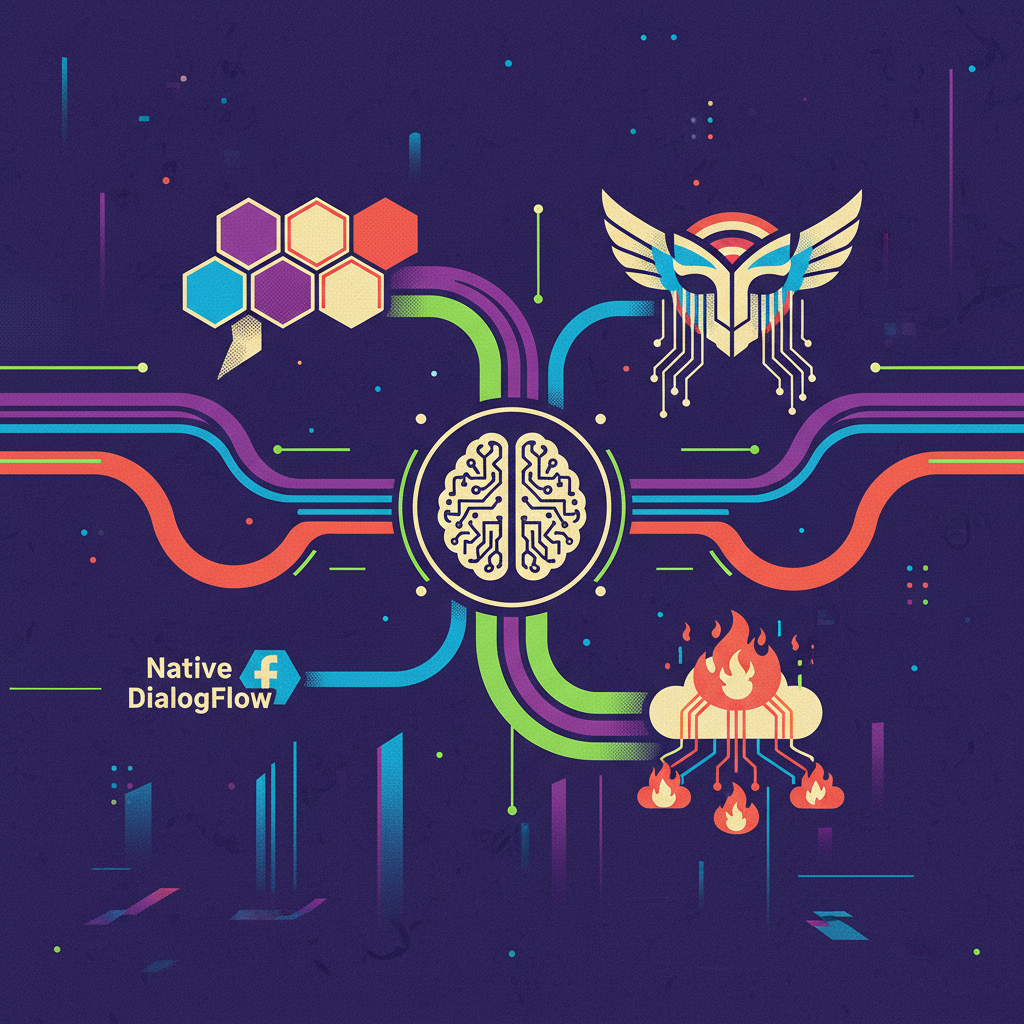
A chatbot does not feel finished just because it recognizes the right intent. It needs to live where people already talk, preserve context between messages, and connect to application data without exposing credentials. That is the integration work that turns a Dialogflow agent into a usable product.
In this fourth installment, we will connect the same agent to two experiences: Facebook Messenger through Dialogflow’s built-in integration, and a custom web chat backed by Firebase. We will also separate two roles that are easy to confuse: calling Dialogflow to interpret a message and running fulfillment after Dialogflow recognizes an intent.
This tutorial reflects the tools and interfaces available in 2019; setup screens, supported runtimes, and platform requirements may have changed since then.
The important correction to the original approach is that you do not need GraphQL, Express, or a Messenger SDK to make this work. Those tools can be useful, but they are not prerequisites.
Understand the two integration paths
Dialogflow handles language understanding, intents, entities, and conversational context. It does not dictate how your chat window looks. A native channel integration connects that conversational backend to a platform; a custom interface lets you control presentation yourself.
Our two paths are:
Facebook Messenger
  → Dialogflow Facebook integration
  → Intent matching and optional fulfillment
  → Messenger response

Custom web chat
  → Firebase callable function
  → Dialogflow detectIntent API
  → Response rendered by your interface
Firebase supplies application services such as Authentication, Hosting, Cloud Firestore, and Cloud Functions. It is not a conversational interface by itself, and it is not unconditionally free: quotas, billing plans, and connected Google Cloud services matter.
Where fulfillment belongs
Suppose a user asks, “Where is my order?” Your Firebase gateway sends that sentence to Dialogflow. Dialogflow identifies an order-status intent, then calls a fulfillment webhook if that intent requires one. The webhook retrieves authorized order data and returns a response.
The gateway and the fulfillment webhook have different jobs. Keeping them separate prevents circular requests and makes failures easier to diagnose.
1. Prepare the agent and cloud project
Before integrating either channel, gather:
- A Dialogflow agent with working welcome, fallback, and task-specific intents.
- A Facebook developer account, a Facebook app with Messenger configured, and a Facebook Page you can manage.
- A Firebase project linked to the Google Cloud project used by your agent, for the simplest permissions setup.
- Node.js, npm, and the Firebase CLI on your development machine.
- Appropriate billing and API access for the services you deploy.
Use the Dialogflow V2 API for this walkthrough. Enable the Dialogflow API in the relevant Google Cloud project and note its project ID, not just the agent’s display name.
Test the agent in Dialogflow’s simulator first. A broken training phrase or missing parameter will not improve when you move it into Messenger.
Decide on a minimal conversation
Start with a small, verifiable exchange: a greeting, one useful question, and a follow-up that depends on context. This tests both basic connectivity and session continuity without involving a database immediately.
Keep initial responses as plain text. Cards, buttons, and quick replies can come later, once the message route works reliably.
2. Connect Facebook Messenger through Dialogflow
Dialogflow’s built-in Facebook integration manages the channel connection. You do not need a custom Firebase message receiver for this route.
- In Facebook’s developer console, create or select an app and add the Messenger product.
- Connect the Facebook Page that will represent your bot and generate its Page access token.
- In Dialogflow, open Integrations and select the Facebook Messenger integration.
- Supply the Page access token and configure a verification token as directed by the integration panel. Keep the verification value identical on both sides.
- Enable the integration, copy its callback URL, and enter that URL and verification token in Facebook’s webhook configuration.
- Subscribe the app to the Page and the relevant Messenger webhook events, including messages and postbacks where used.
- Send a message to the Page from an account permitted to test the app.
Exact labels may vary, but the relationship stays the same: Facebook sends Page events to Dialogflow’s callback, and Dialogflow uses the Page token to send replies.
Test access before troubleshooting intent matching
While the Facebook app is in development mode, testing is restricted to eligible app-role accounts and other platform-authorized testers. A successful exchange from an administrator does not mean the bot is publicly available.
Before launch, complete Facebook’s applicable review and permission requirements, switch to the appropriate live configuration, and check the Messenger messaging policies in effect for your app.
Treat the Page access token like a password. Do not put it into browser JavaScript or commit it to source control.
Add platform-specific responses carefully
Messenger can display richer responses than a simple chat transcript, but those payloads are channel-specific. Configure Facebook-specific responses in Dialogflow only after the text version works.
Always retain a useful text response for your custom interface. A browser client that only reads fulfillmentText will not automatically render Messenger cards or quick replies.
3. Create a Firebase gateway for custom chat
For your own web interface, keep Dialogflow credentials on the server. The browser authenticates with Firebase and calls a Cloud Function; that function calls Dialogflow using its runtime identity.
Initialize the project:
npm install -g firebase-tools
firebase login
firebase init functions hosting
Choose JavaScript for the Functions example below. Use a Cloud Functions-supported Node.js runtime available in your 2019 environment, such as Node.js 8 at that time. Runtime availability changes, so historical runtime settings should not be copied blindly into a newer deployment.
Inside the functions directory, install the then-current Dialogflow Node client:
cd functions
npm install dialogflow
Keep the generated firebase-admin and firebase-functions dependencies. Commit your lockfile so subsequent builds use the dependency versions you tested.
Grant the runtime permission
The deployed function uses Application Default Credentials. Give its runtime service account the Dialogflow API Client role on the agent’s project, rather than distributing a downloaded service-account key to clients.
Set the agent project ID through Firebase’s 2019 configuration mechanism:
firebase functions:config:set dialogflow.project_id="YOUR_PROJECT_ID"
If Firebase and Dialogflow use different projects, grant access in the Dialogflow project explicitly. Enabling an API in one project does not authorize identities from another.
4. Implement the authenticated message endpoint
Replace the sample contents of functions/index.js with:
const functions = require('firebase-functions');
const dialogflow = require('dialogflow');
const crypto = require('crypto');

const sessions = new dialogflow.SessionsClient();
const projectId = functions.config().dialogflow.project_id;

exports.chat = functions.https.onCall(async (data, context) => {
  if (!context.auth) {
    throw new functions.https.HttpsError(
      'unauthenticated', 'Sign in before sending messages.'
    );
  }

  const text = data && data.text;
  const conversationId = data && data.conversationId;

  if (typeof text !== 'string' || !text.trim() ||
      text.length > 256 ||
      typeof conversationId !== 'string' ||
      !/^[a-zA-Z0-9_-]{1,64}$/.test(conversationId)) {
    throw new functions.https.HttpsError(
      'invalid-argument', 'Invalid message or conversation ID.'
    );
  }

  // Scope the session to both the user and conversation.
  const sessionId = crypto.createHash('sha256')
    .update(JSON.stringify([context.auth.uid, conversationId]))
    .digest('hex')
    .slice(0, 32);

  try {
    const [response] = await sessions.detectIntent({
      session: sessions.sessionPath(projectId, sessionId),
      queryInput: {
        text: {
          text: text.trim(),
          languageCode: 'en-US'
        }
      }
    });

    const result = response.queryResult;
    return {
      text: result.fulfillmentText ||
        'Sorry, I could not produce a text response.',
      intent: result.intent ? result.intent.displayName : null
    };
  } catch (error) {
    console.error('Dialogflow request failed', error.code);
    throw new functions.https.HttpsError(
      'internal', 'The chat service is temporarily unavailable.'
    );
  }
});
The session hash fits Dialogflow’s session identifier limit and prevents two different authenticated users from sharing context simply by choosing the same conversation ID. The language code must match a language supported by your agent.
Authentication is not rate limiting. Before public deployment, add server-side per-user usage controls and monitoring, especially if you allow anonymous sign-in.
Deploy the function:
firebase deploy --only functions:chat
5. Call the gateway from your interface
Enable an appropriate Firebase Authentication provider. Anonymous authentication is useful for a prototype, but it does not establish a verified customer identity.
With the Firebase 6.x app, authentication, and functions browser SDKs loaded, initialize Firebase with your project’s web configuration. Then connect your send-message handler:
firebase.initializeApp(firebaseConfig);

async function startChat() {
  await firebase.auth().signInAnonymously();

  let conversationId = sessionStorage.getItem('conversationId');
  if (!conversationId) {
    const bytes = new Uint8Array(16);
    window.crypto.getRandomValues(bytes);
    conversationId = Array.from(bytes, function (byte) {
      return ('0' + byte.toString(16)).slice(-2);
    }).join('');
    sessionStorage.setItem('conversationId', conversationId);
  }

  const chat = firebase.functions().httpsCallable('chat');

  return async function sendMessage(text) {
    const response = await chat({ text, conversationId });
    return response.data.text;
  };
}
Call startChat() once, then use the returned function from your form’s submit handler. Render messages with textContent, not unsanitized HTML.
Disable duplicate submissions while a turn is pending, show a waiting indicator, and provide a readable error state. Serializing messages also helps avoid competing updates to Dialogflow contexts.
Keep the conversation ID stable for follow-up messages. Generate a new one when the user explicitly starts over. Dialogflow session context is temporary; it is not a durable conversation archive.
6. Add persistence and fulfillment deliberately
Cloud Firestore is optional for basic chat. Add it when you need durable history, feedback, or workflow state.
A useful structure is:
users/{uid}/conversations/{conversationId}/messages/{messageId}
If browsers access this structure, require ownership in Firestore Security Rules. If your function writes through the Admin SDK, remember that it bypasses those rules: enforce authorization inside the function. Avoid keeping sensitive transcripts indefinitely, and explain retention to users.
For business actions, create a separate HTTPS fulfillment function and configure its URL in Dialogflow’s fulfillment settings. Enable webhook fulfillment only on intents that need it. A basic V2 webhook response looks like:
{
  "fulfillmentText": "What is your order reference?"
}
Protect that endpoint using Dialogflow’s supported webhook authentication configuration. Also authorize the underlying action: a supplied order number or Messenger sender identifier is not proof that someone owns an order. Channel-to-account linking requires its own secure flow.
What Cloud Functions actually improves
Cloud Functions runs code on demand; instances are not guaranteed to stay warm. Cold starts, network calls, quotas, and webhook deadlines still affect response time.
Asynchronous JavaScript can avoid blocking while waiting for I/O, but it cannot make an external service instantaneous. Keep synchronous fulfillment short, use explicit timeouts, and move lengthy work to a queued workflow. Do not assume unawaited background work will finish after a function returns.
Common pitfalls before launch
- No Messenger reply: check Page subscription, token validity, app mode, and tester eligibility before changing intents.
- Lost context: confirm that consecutive messages use the same user-scoped session.
- Permission errors: inspect the function’s runtime identity and access to the agent project.
- Duplicate business actions: make fulfillment operations idempotent; retries can happen.
- Unexpected costs or abuse: enforce usage limits and configure billing alerts. Alerts alone do not cap spending.
Takeaway
Use Dialogflow’s native integration for Messenger and a protected Firebase gateway for your custom interface. Keep channel presentation, intent detection, persistence, and business fulfillment separate. That gives you a chatbot you can test, secure, and extend without adding unnecessary infrastructure, or promising that serverless hosting removes every source of latency.
Conversation (0)
No comments yet. Start the conversation.
Join the conversation
Create a free member account to comment.