Shopify Wholesale Conditional Navigation Using Liquid Templates
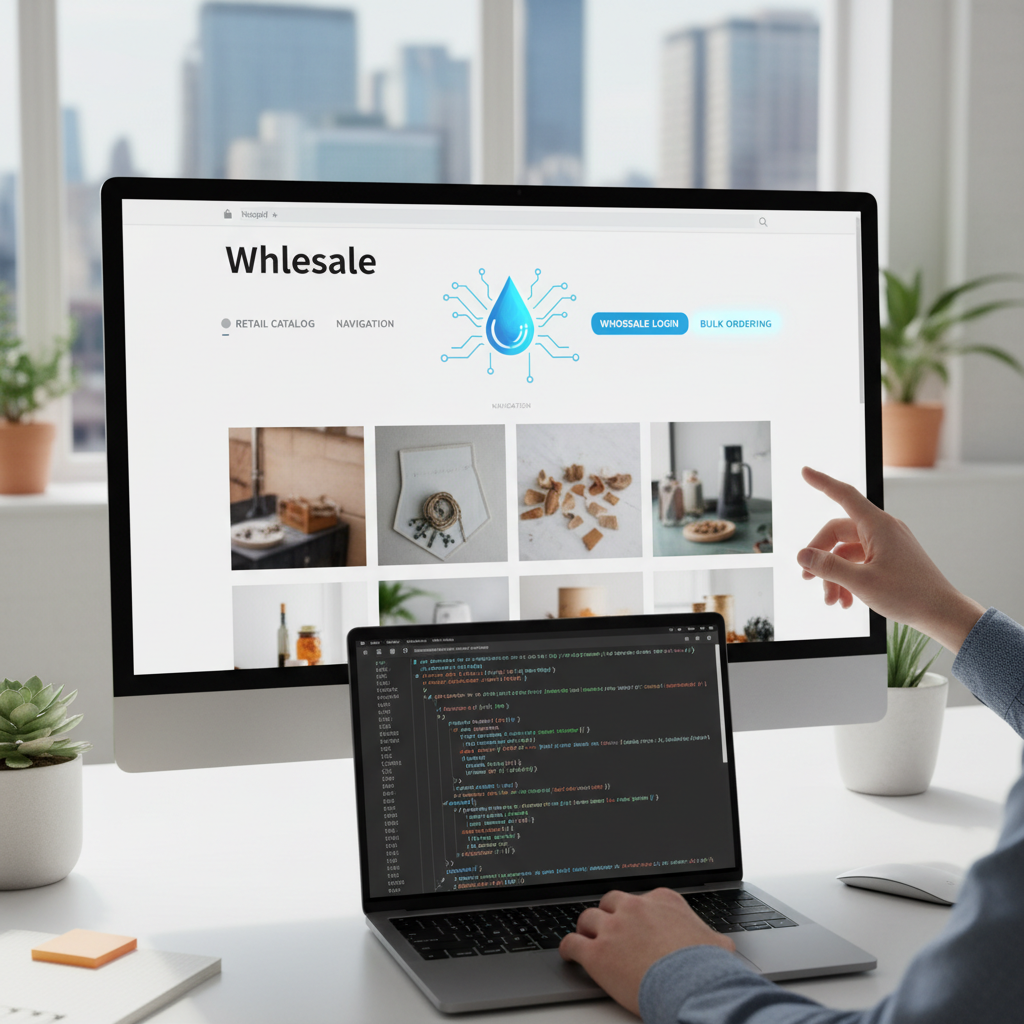
A retail shopper and a wholesale buyer may arrive at the same Shopify storefront with very different goals. One wants to browse individual products; the other wants case quantities, ordering instructions, and information about trade terms. Sending both customers through the same navigation can make an otherwise straightforward purchase feel unnecessarily complicated.
Conditional navigation gives each audience a more useful starting point. With Shopify’s Liquid template language, you can check whether a logged-in customer has an approved wholesale tag and then display the appropriate menu.
This tutorial reflects Shopify themes and administration workflows as of 2019; tools and interfaces may have changed since then.
The implementation below uses customer tags, two Shopify navigation menus, and a small Liquid condition. It works at the storefront theme level: it changes which links appear, but it does not create wholesale pricing or secure private pages by itself.
What Conditional Navigation Actually Does
Liquid is Shopify’s server-rendered template language. It combines theme markup with store data and supports variables, conditions, loops, and filters. When Shopify renders a page, Liquid can use the current customer’s information to decide which navigation to output.
For this tutorial, the rules are:
- Visitors who are not signed in see the retail menu.
- Signed-in customers without the
wholesaletag see the retail menu. - Signed-in customers with the
wholesaletag see the wholesale menu.
A wholesale menu might contain links to a bulk-order page, shipping requirements, trade policies, and account information. The retail menu might emphasize collections, gifts, and customer support.
Navigation Is Not Access Control
Hiding a link does not prevent someone from opening its destination directly. A visitor may find a URL through search, bookmarks, shared links, or another part of your theme.
Likewise, displaying a “Wholesale Catalog” link does not change product prices or enforce minimum order quantities. Those requirements need separate implementation, such as an appropriate wholesale solution or supported platform functionality.
Treat conditional navigation as a usability improvement, not as a security boundary. If confidential pricing or documents are involved, verify access restrictions independently before publishing.
Before You Edit the Theme
You need permission to manage customers, navigation, and theme code. You also need a way to sign in as a test customer.
Prepare these items first:
- A duplicate of your current theme.
- A normal retail customer account.
- An approved wholesale test account.
- A list of destinations for each menu.
- A consistent customer tag, such as
wholesale.
In the 2019 Shopify admin, customer account settings are generally under Settings → Checkout. Ensure accounts are enabled in a configuration that allows your buyers to sign in. A tagged customer who is browsing anonymously will still receive the retail navigation.
Theme structures vary. Some themes output their menu in sections/header.liquid; others use a header snippet or markup in layout/theme.liquid. The goal is to locate the existing menu loop, not to assume every theme has the same files.
How to Build Wholesale Conditional Navigation
1. Tag Approved Wholesale Customers
Open Customers in Shopify, select an approved buyer, and add the tag wholesale. Save the customer record.
Use the same spelling and capitalization everywhere. The condition below checks for a specific tag value, so inconsistent labels make troubleshooting harder.
Keep approval under merchant control. A public wholesale application form can collect information, but it should not automatically grant an approved-customer tag unless that behavior is intentional and appropriately validated.
For testing, confirm that your retail account does not have the wholesale tag and that your wholesale account does.
2. Create the Retail and Wholesale Menus
Go to Online Store → Navigation and prepare two menus:
- Your existing retail menu, commonly named Main menu.
- A new menu named Wholesale menu.
For example, the wholesale menu could include:
- Wholesale catalog
- Bulk ordering
- Shipping and minimums
- Trade support
- My account
Create or verify those destinations before linking to them. A menu item does not create an order form, a protected catalog, or an account policy page.
The examples below assume the menu handles are main-menu and wholesale-menu. Confirm the actual handles rather than relying only on the displayed menu names. Liquid accesses menus through their handles using the linklists object.
Keep useful shared destinations in both menus. Wholesale buyers should not lose access to contact information or general store policies simply because they have a different customer classification.
3. Duplicate the Theme and Locate Its Navigation
Under Online Store → Themes, duplicate the live theme and edit the duplicate’s code.
Search the header and navigation files for patterns such as:
{% for link in linklists[section.settings.main_linklist].links %}
or:
{% for link in linklists['main-menu'].links %}
You may instead find an assigned menu variable or a snippet that receives the menu as a parameter. Follow that value to the place where the menu is selected.
Prefer changing the menu source while leaving the existing renderer intact. Its markup may contain classes, dropdown controls, accessibility attributes, and JavaScript hooks that the theme needs.
4. Select the Menu Based on the Customer Tag
Place this logic immediately before the navigation loop in the file that renders it:
{% assign navigation_handle = 'main-menu' %}

{% if customer %}
  {% if customer.tags contains 'wholesale' %}
    {% assign navigation_handle = 'wholesale-menu' %}
  {% endif %}
{% endif %}

{% assign navigation_menu = linklists[navigation_handle] %}
The retail menu is the default. Shopify exposes the customer object when a storefront customer is signed in; the nested check then tests their tags.
Because customer.tags is an array, contains 'wholesale' checks whether that tag is present. It is not a check for whether the customer’s email address, name, or another field contains the word.
Next, change the original loop’s source to:
{% for link in navigation_menu.links %}
  <!-- Keep the theme's existing link markup here. -->
{% endfor %}
That comment is an integration placeholder, not a complete menu renderer. Retain the actual markup from your theme inside the loop.
5. Preserve the Theme’s Configured Retail Menu
Hardcoding main-menu is easy to understand, but many themes let merchants choose their menu in the theme editor. Preserve that setting where possible.
For a section whose existing menu setting is named main_linklist, the selection logic becomes:
{% assign navigation_handle = section.settings.main_linklist %}

{% if navigation_handle == blank %}
  {% assign navigation_handle = 'main-menu' %}
{% endif %}

{% if customer %}
  {% if customer.tags contains 'wholesale' %}
    {% assign navigation_handle = 'wholesale-menu' %}
  {% endif %}
{% endif %}

{% assign navigation_menu = linklists[navigation_handle] %}
main_linklist is an example setting ID, not a universal Shopify property. Use the ID already present in your theme. Code outside that section’s context may use a different source, such as a global theme setting.
For a more maintainable implementation, a developer can add a second link_list setting for the wholesale menu. That lets staff change both menus through the theme editor without editing Liquid again.
6. Render Links Without Breaking Existing Behavior
If you are building a simple custom navigation rather than modifying an existing renderer, this example outputs top-level links and one child level:
<nav aria-label="Primary navigation">
  <ul class="site-nav">
    {% for link in navigation_menu.links %}
      <li class="site-nav__item">
        <a href="{{ link.url | escape }}"{% if link.current %} aria-current="page"{% endif %}>
          {{ link.title | escape }}
        </a>

        {% if link.links != blank %}
          <ul class="site-nav__children">
            {% for child_link in link.links %}
              <li>
                <a href="{{ child_link.url | escape }}"{% if child_link.current %} aria-current="page"{% endif %}>
                  {{ child_link.title | escape }}
                </a>
              </li>
            {% endfor %}
          </ul>
        {% endif %}
      </li>
    {% endfor %}
  </ul>
</nav>
This is ordinary nested-list navigation, not a complete interactive dropdown. It needs suitable styling, and any collapsible behavior must support keyboard and touch interaction.
It also renders only two levels. If your menu includes grandchildren, retain your theme’s existing deeper navigation renderer or add another loop deliberately. Changing the selected menu should not silently remove its descendants.
7. Give Wholesale Buyers a Clear Sign-In Route
Approved buyers cannot see their wholesale navigation until they sign in. Make the account link easy to find and explain this requirement in your approval instructions.
For a simple logged-out prompt, you can use:
{% unless customer %}
  <a href="/account/login">Wholesale customer? Sign in</a>
{% endunless %}
An application link can sit alongside this prompt, but distinguish applying from signing in. Existing approved buyers should not have to complete the application again.
Test Every Customer State
Before publishing, test the duplicate theme using actual storefront accounts. Being logged into the Shopify admin does not mean you are signed into a storefront customer account.
| Customer state | Expected navigation |
| --- | --- |
| Signed out | Retail menu |
| Signed in without wholesale | Retail menu |
| Signed in with wholesale | Wholesale menu |
| Wholesale tag removed, then page reloaded | Retail menu |
Check desktop navigation, mobile drawers, sticky headers, and any footer menus you intend to personalize. Themes sometimes render each one separately, so changing the desktop loop may leave the mobile menu untouched.
Also test nested links, keyboard navigation, sign-in and sign-out transitions, and direct visits to wholesale destinations. Reload the storefront after tag changes so Liquid can render against the updated customer state.
Use a separate browser profile or private window to keep the signed-out test independent from the wholesale session.
Common Pitfalls and Practical Fixes
The Wholesale Menu Is Empty
Check its handle and confirm that it contains links. A misspelled handle can leave the renderer with no menu items. Keep the retail menu intact and validate the wholesale menu before deployment.
The Right Customer Sees the Wrong Menu
Verify that the customer is signed in on the storefront, that you tagged the correct record, and that the tag matches the Liquid condition. Then confirm you are viewing the edited theme rather than the live version.
Desktop Works, but Mobile Does Not
Look for a separate mobile navigation snippet or section. Apply the same menu-selection rule there, or centralize it using the theme’s existing snippet conventions. Place assignments where each renderer can reliably access them.
Wholesale Content Is Still Public
That is expected if you changed only navigation. Review direct URLs, search results, other menu locations, and product purchasing behavior separately. Do not promise restricted access based on a hidden link.
A Theme Update Removes the Change
Record the affected files, setting IDs, menu handles, and customer tag. Keep a copy of the modification so it can be reviewed and reapplied when the theme is replaced or updated.
Takeaway
Shopify wholesale conditional navigation is a small Liquid change with a clear purpose: select the right menu for the signed-in customer. Use an approved customer tag, preserve the theme’s existing navigation behavior, and test every customer state across desktop and mobile. Keep pricing and access enforcement separate, and the result is a more useful storefront without confusing presentation logic with wholesale authorization.
Conversation (0)
No comments yet. Start the conversation.
Join the conversation
Create a free member account to comment.